
Tech: Obsidian Workflow
Alex talks about an Obsidian workflow for syncing between Linux and Mac devices.


I want to discuss how I'm experimenting with syncing Obsidian files via unofficial means (meaning not using the Obsidian Sync monthly service). This is going to be an instructional post on how I set up syncing between all of my devices which are split across a:
- Linux Laptop
- iPad
- Mac Desktop
I'll walk through my needs, plugins, and the stuff that I've used to get it working in case it's useful for someone out there. Let's start with what I needed to solve for.
What I need in a writing / syncing tool
I do a lot of writing, both for this blog and my personal blog as well as some fiction writing and TTRPG planning. There are a few key features that I want out of a solution:
- Available on all of my devices with an easy and quick synchronization of the content
- The ability to make "sections" and be able to reorder / organize those.
- Notes either attached to the page or somewhere in the folder.
- Templates are a nice-to-have.
I've tried several things, starting with Scrivener which is a great tool, but barely supports any syncing tools due to how the package files are structured (iCloud, for example, regularly messes up Scrivener files). I tried to manually do syncing with Git across iPad and desktop, but Scrivener stores the mobile files in a different folder and then does some sorcery to merge them that I couldn't get to work over git.
So, I abandoned Scrivener as a viable option.
Next up was Ulysses which is an Apple-ecosystem-only tool. Ulysses is great, it ticks all the feature boxes, has a lot of great export options, and uses iCloud to power its sync. It "just works". I love it, but it excludes my Linux machines, so I don't have access to the writing across the non-Apple devices. I've been working around that for a while, and I still use Ulysses for various things when I'm on the mac.
But, I want something that's available across everything, and I loved Obsidian already so I tried Obsidian Sync. It worked great, but I quickly learned that the $4/mo subscription only allowed for syncing a single vault. The $8/mo only allows for 10 vaults. That doesn't really work for my needs (especially when Ulysses is $3.33/mo when paid yearly), so I had to seek out another solution.
The Solution!
So, where I've landed is a two-fold process. The first part is running my own Nextcloud server so that I have a WebDAV server that I can sync the files to. The second portion is the RemotelySave plugin.
Installing Nextcloud was pretty simple, a lot of VPS providers have a one-click installation for it, and I used Hetzner's version of this. If you would like to do this on Hetzner (they have an Oregon datacenter now!) here's my referral link.
Once that was set up, you'll need to find your WebDAV link. It's very straightforward, and here is a link to the docs:

Also! If you click on "Files Settings" on your Nextcloud instance, it'll give you the actual link. You'll also need to make an application password for your instance (because hopefully you're using 2FA on your account).
Once that's done you can make a new Obsidian Vault and then install the RemotelySave plugin. After you've done that, change the service to WebDAV.

Then, I changed 2 other settings to make it easier to download this to other devices:


Adding those settings lets you do something neat (though it will warn you about the config dir thing several times).
Bonus points: Nextcloud maintains versions too, so if something goes horribly wrong with the sync you still have a backup of the prior contents on Nextcloud. And you can use Nextcloud's web-based markdown editor in a pinch if you really need to, and it'll sync down just fine.
Installing the Vault on other Devices
This is the cool part, and requires a bit of manual effort, but it's very easy. Over on your Nextcloud instance, you can simply download or copy the folder to your new device, unzip it somewhere, and tell Obsidian to open it as a vault.
Because you synced the .obsidian folder, you will automatically have the same plugins installed, configured in the same way.
And that's it! It just works. It syncs on a configurable number of minutes, and you can tell it to sync on startup or on save!
iPad Disclaimer
There is a small extra hoop you have to jump through to get this working on iPad. Namely, you have to first create a local-only vault with the same name as your vault in Obsidian and then copy the contents of the vault folder on top of that new vault. Then you must close and reopen the vault (or Obsidian) to get it to pick up the plugin and changes.
Otherwise, it also "just works" ™️
Wrap up
Now this is likely not going to work for everyone, and for some folks simply using iCloud for Obsidian is going to be better (or, better, just using Ulysses if that's what works for you — Longform has some quirks that Ulysses simply doesn't possess).
But if you're looking for just the right syncing solution this might work for you. Do pay attention to the security points I've made in this post though.
Tools Discussed in this Article


 — David Hewson, Best-Selling Author (“The Killing”)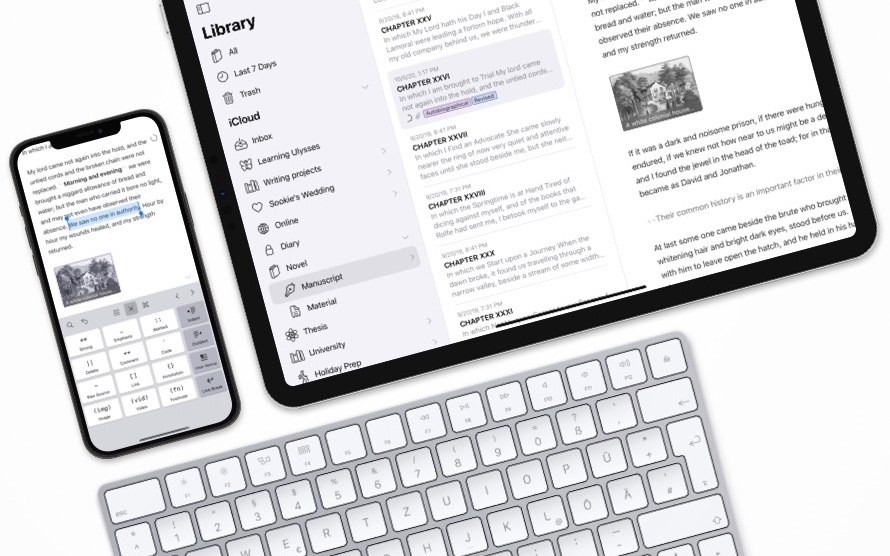
 Michael Marshall Smith, NYT best-selling author.
Obsidian Plugins
 kevbohremotely-save